

This post will delve into the essential steps and best practices for building and exploring a Docker file with a variety of real-time use cases. By examining different scenarios, it will become easier to grasp the practical applications of Docker in various real-world contexts. Whether it’s deploying a web application, setting up a database, or orchestrating microservices, understanding these use cases provides valuable insights for effectively utilizing Docker in real-time environments. The Docker file serves as the blueprint for creating your container and executing the desired application, offering a fundamental building block for seamless deployment and scalability.
Let’s walk through the building blocks of the docker file.
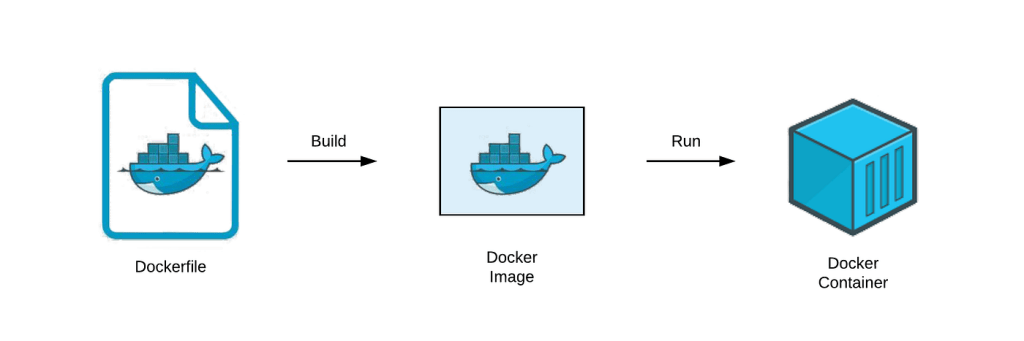
- Docker base image
- RUN and ENV (Setup the environment)
- Working Directory
- COPY or ADD application files
- Entry point
- Environment variables
Docker base image: The image or operating system where you run your application.
This image can be Linux or Windows and based on your needs
Setup the environment : Install the software and tools which is required for the application
Working Directory
The place or directory where you keep your application installation and executable files
Entry point
The command to execute the application.It could be a single command or executable file
Environment variables
Environment variables are the input for your docker file.
COPY or ADD application files :
Once we all set the environment, add the required files using the ADD command.
ADD app.zip
ADD run.sh
Environment variables
run.sh file will be executed based on the input parameter passed in the environment variables
docker run -e TEST_EXECUTOR=java/ant -e JVM_ARGS=”-Dtest=val1 ” – e TEST_ARGS=”-a key -b name”
The Docker file includes the Ubuntu base image and installs Java and Ant. It then sets the working directory to /opt/my-app before adding the necessary application files and executing the application with the entry point command.
Lets see the detailed view below,
FROM ubuntu:18.04 <Docker base image>

RUN apt-get update \ <Setup the environment>
    && apt-get -y install openjdk-8-jre \
    && apt-get -y install wget \
    && apt-get -y install unzip \
    && apt-get -y install curl \
    && rm -rf /var/lib/apt/lists/*

# Install Java
ENV JAVA_HOME /usr/lib/jvm/java-8-openjdk-amd64
ENV PATH $JAVA_HOME/bin:$PATH

# Installs Ant
ENV ANT_DOWNLOAD_URI=http://archive.apache.org/dist/ant/binaries/
ENV ANT_VERSION 1.9.6

RUN cd  \
    && wget -q ${ANT_DOWNLOAD_URI}apache-ant-${ANT_VERSION}-bin.tar.gz  \
    && tar -xzf apache-ant-${ANT_VERSION}-bin.tar.gz  \
    && mv apache-ant-${ANT_VERSION} /opt/ant  \
    && rm -v apache-ant-${ANT_VERSION}-bin.tar.gz

ENV ANT_HOME /opt/ant
ENV PATH ${PATH}:/opt/ant/bin

ENV JAVA_OPTS="${JAVA_OPTS:--Xms1024m -Xms2048m}"

WORKDIR /opt/my-app <Working Directory>

ADD run.sh /opt/my-app
ADD app.zip /opt/my-app <COPY or ADD application files>

RUN chmod +x run.sh

#Unzip app.zip with overwrite, quite option
RUN unzip -o -q -d app app.zip

ENTRYPOINT ["/opt/my-app/run.sh"] <Entry point>
While executing the application we can control it with env variables with run.sh file.
Let’s go over below run.sh file for more details.
echo "Using container arguments: ${TEST_EXECUTOR} ${JVM_ARGS} ${CLASS_NAME} ${TEST_ARGS} "
echo "***********************************************************************"
if [[ ${TEST_EXECUTOR} == "java" ]]; then
  echo "Executing the java app"
  echo ${TEST_EXECUTOR} ${TEST_ARGS} | xargs -Xms1024m -Xmx2048m  ${JVM_ARGS} -cp ".:lib/*:resources/" ${CLASS_NAME}
elif [[ ${TEST_EXECUTOR} == "ant" ]]; then
  echo "Excuting Ant test"
  ${TEST_EXECUTOR} ${JVM_ARGS} run-class -Dclass.name=${CLASS_NAME} ${TEST_ARGS}
else
 echo "Container requires input parameters."
 echo "Usage : docker run -e TEST_EXECUTOR=java/ant -e CLASS_NAME="com.test.myapp" -e JVM_ARGS="-Dhostname=myhost -Dusername=manikandank -Dpassword=test" <image name>"
fi
We will go through another docker file for running a web application.

 manikandank